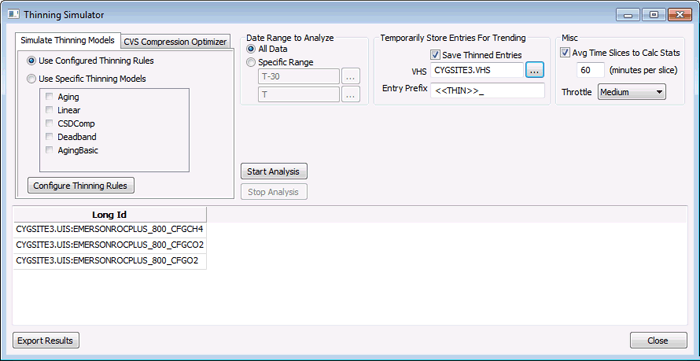
The VHS Data Analyzer Thinning Simulator can be used to determine meaningful deviations to fine tune the Deadband Compression and the CygNet Swinging Door (CSD) Compression thinning models. It can also be used to simulate thinning a point so you can view before and after statistics and trends.
Before using the simulator, you must add at least one point to it. This can be done by right-clicking on a point in the VHS Data Analyzer and selecting Add to Simulator. A point can be removed from the simulator by right-clicking on it and selecting Remove From Simulator. To add all the points which are configured for thinning select Add Points With Thinning Rules to Simulator from the Simulator menu. All points can be removed from the simulator by selecting Clear Simulator from the Simulator menu.
After selecting the points you wish to simulate, run the simulator by selecting Run Simulator from the Simulator menu.
Running the Thinning Simulator
More:
 Configuring the Thinning Simulator
|
|
|

